
obsws-cli


A command line interface for OBS Websocket v5
For an outline of past/future changes refer to: CHANGELOG
Table of Contents
Requirements
- Python 3.10 or greater
- OBS Studio 28+
Installation
with uv
uv tool install obsws-cli
with pipx
pipx install obsws-cli
The CLI should now be discoverable as obsws-cli
Configuration
Flags
- --host/-H: Websocket host
- --port/-P Websocket port
- --password/-p: Websocket password
- --timeout/-T: Websocket timeout
- --version/-v: Print the obsws-cli version
Pass --host, --port and --password as flags on the root command, for example:
obsws-cli --host=localhost --port=4455 --password=<websocket password> --help
Environment Variables
Store and load environment variables from:
- A
.envfile in the cwd user home directory / .config / obsws-cli / obsws.env
OBS_HOST=localhost
OBS_PORT=4455
OBS_PASSWORD=<websocket password>
Flags can be used to override environment variables.
Style
Styling is opt-in, by default you will get a colourless output:
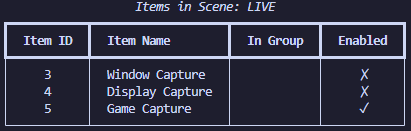
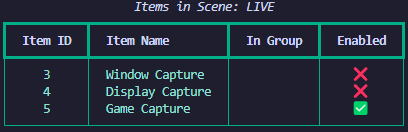
You may enable styling with the --style/-s flag:
obsws-cli --style="cyan" sceneitem list
Available styles: red, magenta, purple, blue, cyan, green, yellow, orange, white, grey, navy, black
Optionally you may disable border colouring with the --no-border flag:
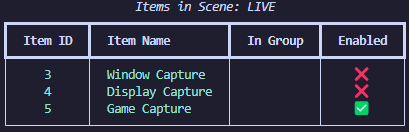
obsws-cli --style="cyan" --no-border sceneitem list
Or with environment variables:
OBS_STYLE=cyan
OBS_STYLE_NO_BORDER=true
Root Typer
- obs-version: Get the OBS Client and WebSocket versions.
obsws-cli obs-version
Sub Typers
Scene
- list: List all scenes.
-
flags:
optional
- --uuid: Show UUIDs of scenes
-
obsws-cli scene list
- current: Get the current program scene.
obsws-cli scene current
- switch: Switch to a scene.
- args: <scene_name>
obsws-cli scene switch LIVE
Scene Item
-
list: List all items in a scene.
-
flags:
optional
- --uuid: Show UUIDs of scene items
optional
- args: <scene_name>
- defaults to current scene
-
obsws-cli sceneitem list

obsws-cli sceneitem list LIVE
- show: Show an item in a scene.
-
flags:
optional
- --group: Parent group name
-
args: <scene_name> <item_name>
-
obsws-cli sceneitem show START "Colour Source"
- hide: Hide an item in a scene.
-
flags:
optional
- --group: Parent group name
-
args: <scene_name> <item_name>
-
obsws-cli sceneitem hide START "Colour Source"
- toggle: Toggle an item in a scene.
-
flags:
optional
- --group: Parent group name
-
args: <scene_name> <item_name>
-
obsws-cli sceneitem toggle --group=test_group START "Colour Source 3"
- visible: Check if an item in a scene is visible.
-
flags:
optional
- --group: Parent group name
-
args: <scene_name> <item_name>
-
obsws-cli sceneitem visible --group=test_group START "Colour Source 4"
- transform: Set the transform of an item in a scene.
-
flags:
optional
-
--group: Parent group name.
-
--alignment: Alignment of the item in the scene
-
--bounds-alignment: Bounds alignment of the item in the scene
-
--bounds-height: Height of the item in the scene
-
--bounds-type: Type of bounds for the item in the scene
-
--bounds-width: Width of the item in the scene
-
--crop-to-bounds: Crop the item to the bounds
-
--crop-bottom: Bottom crop of the item in the scene
-
--crop-left: Left crop of the item in the scene
-
--crop-right: Right crop of the item in the scene
-
--crop-top: Top crop of the item in the scene
-
--position-x: X position of the item in the scene
-
--position-y: Y position of the item in the scene
-
--scale-x: X scale of the item in the scene
-
--scale-y: Y scale of the item in the scene
-
-
args: <scene_name> <item_name>
-
obsws-cli sceneitem transform \
    --rotation=5 \
    --position-x=250.8 \
    Scene "Colour Source 3"
Scene Collections
- list: List all scene collections.
obsws-cli scenecollection list
- current: Get the current scene collection.
obsws-cli scenecollection current
- switch: Switch to a scene collection.
- args: <scene_collection_name>
obsws-cli scenecollection switch test-collection
- create: Create a new scene collection.
- args: <scene_collection_name>
obsws-cli scenecollection create test-collection
Group
-
list: List groups in a scene.
optional
- args: <scene_name>
- defaults to current scene
- args: <scene_name>
obsws-cli group list

obsws-cli group list START
- show: Show a group in a scene.
- args: <scene_name> <group_name>
obsws-cli group show START "test_group"
- hide: Hide a group in a scene.
- args: <scene_name> <group_name>
obsws-cli group hide START "test_group"
- toggle: Toggle a group in a scene.
- args: <scene_name> <group_name>
obsws-cli group toggle START "test_group"
- status: Get the status of a group in a scene.
- args: <scene_name> <group_name>
obsws-cli group status START "test_group"
Input
- create: Create a new input.
- args: <input_name> <input_kind>
obsws-cli input create 'stream mix' 'wasapi_input_capture'
- remove: Remove an input.
- args: <input_name>
obsws-cli input remove 'stream mix'
- list: List all inputs.
-
flags:
optional
- --input: Filter by input type.
- --output: Filter by output type.
- --colour: Filter by colour source type.
- --ffmpeg: Filter by ffmpeg source type.
- --vlc: Filter by VLC source type.
- --uuid: Show UUIDs of inputs.
-
obsws-cli input list

obsws-cli input list --input --colour
- list-kinds: List all input kinds.
obsws-cli input list-kinds
- mute: Mute an input.
- args: <input_name>
obsws-cli input mute "Mic/Aux"
- unmute: Unmute an input.
- args: <input_name>
obsws-cli input unmute "Mic/Aux"
- toggle: Toggle an input.
obsws-cli input toggle "Mic/Aux"
- volume: Set the volume of an input.
- args: <input_name>
obsws-cli input volume -- 'Desktop Audio' -38.9
- show: Show information for an input in the current scene.
-
args: <input_name>
-
flags:
optional
- --verbose: List all available input devices.
-
obsws-cli input show 'Mic/Aux' --verbose
- update: Name of the input to update.
- args: <input_name> <device_name>
obsws-cli input update 'Mic/Aux' 'Voicemeeter Out B1 (VB-Audio Voicemeeter VAIO)'
Text
- current: Get the current text for a text input.
- args: <input_name>
obsws-cli text current "My Text Input"
- update: Update the text of a text input.
- args: <input_name> <new_text>
obsws-cli text update "My Text Input" "hi OBS!"
Record
- start: Start recording.
obsws-cli record start
- stop: Stop recording.
obsws-cli record stop
- status: Get recording status.
obsws-cli record status
- toggle: Toggle recording.
obsws-cli record toggle
- resume: Resume recording.
obsws-cli record resume
- pause: Pause recording.
obsws-cli record pause
-
directory: Get or set the recording directory.
optional
- args: <record_directory>
- if not passed the current record directory will be printed.
- args: <record_directory>
obsws-cli record directory

obsws-cli record directory "/home/me/obs-vids/"
obsws-cli record directory "C:/Users/me/Videos"
- split: Split the current recording.
obsws-cli record split
-
chapter: Create a chapter in the current recording.
optional
- args: <chapter_name>
obsws-cli record chapter "Chapter Name"
Stream
- start: Start streaming.
obsws-cli stream start
- stop: Stop streaming.
obsws-cli stream stop
- status: Get streaming status.
obsws-cli stream status
- toggle: Toggle streaming.
obsws-cli stream toggle
Profile
- list: List profiles.
obsws-cli profile list
- current: Get the current profile.
obsws-cli profile current
- switch: Switch to a profile.
- args: <profile_name>
obsws-cli profile switch test-profile
- create: Create a new profile.
- args: <profile_name>
obsws-cli profile create test-profile
- remove: Remove a profile.
- args: <profile_name>
obsws-cli profile remove test-profile
Replay Buffer
- start: Start the replay buffer.
obsws-cli replaybuffer start
- stop: Stop the replay buffer.
obsws-cli replaybuffer stop
- status: Get the status of the replay buffer.
obsws-cli replaybuffer status
- save: Save the replay buffer.
obsws-cli replaybuffer save
Studio Mode
- enable: Enable studio mode.
obsws-cli studiomode enable
- disable: Disable studio mode.
obsws-cli studiomode disable
- toggle: Toggle studio mode.
obsws-cli studiomode toggle
- status: Get the status of studio mode.
obsws-cli studiomode status
Virtual Cam
- start: Start virtual camera.
obsws-cli virtualcam start
- stop: Stop virtual camera.
obsws-cli virtualcam stop
- toggle: Toggle virtual camera.
obsws-cli virtualcam toggle
- status: Get the status of the virtual camera.
obsws-cli virtualcam status
Hotkey
- list: List all hotkeys.
obsws-cli hotkey list
- trigger: Trigger a hotkey by name.
obsws-cli hotkey trigger OBSBasic.StartStreaming

obsws-cli hotkey trigger OBSBasic.StopStreaming
- trigger-sequence: Trigger a hotkey by sequence.
-
flags:
optional
- --shift: Press shift.
- --ctrl: Press control.
- --alt: Press alt.
- --cmd: Press command (mac).
-
args: <key_id>
- Check obs-hotkeys.h for a full list of OBS key ids.
-
obsws-cli hotkey trigger-sequence OBS_KEY_F1 --ctrl

obsws-cli hotkey trigger-sequence OBS_KEY_F1 --shift --ctrl
Filter
-
list: List filters for a source.
optional
- args: <source_name>
- defaults to current scene
- args: <source_name>
obsws-cli filter list "Mic/Aux"
- enable: Enable a filter for a source.
- args: <source_name> <filter_name>
obsws-cli filter enable "Mic/Aux" "Gain"
- disable: Disable a filter for a source.
- args: <source_name> <filter_name>
obsws-cli filter disable "Mic/Aux" "Gain"
- toggle: Toggle a filter for a source.
- args: <source_name> <filter_name>
obsws-cli filter toggle "Mic/Aux" "Gain"
- status: Get the status of a filter for a source.
- args: <source_name> <filter_name>
obsws-cli filter status "Mic/Aux" "Gain"
Projector
- list-monitors: List available monitors.
obsws-cli projector list-monitors
-
open: Open a fullscreen projector for a source on a specific monitor.
-
flags:
optional
- --monitor-index: Index of the monitor to open the projector on.
- defaults to 0
- --monitor-index: Index of the monitor to open the projector on.
optional
- args: <source_name>
- defaults to current scene
-
obsws-cli projector open

obsws-cli projector open --monitor-index=1 "test_scene"

obsws-cli projector open --monitor-index=1 "test_group"
Screenshot
- save: Take a screenshot and save it to a file.
-
flags:
optional
- --width:
- defaults to 1920
- --height:
- defaults to 1080
- --quality:
- defaults to -1
- --width:
-
args: <source_name> <output_path>
-
obsws-cli screenshot save --width=2560 --height=1440 "Scene" "C:\Users\me\Videos\screenshot.png"
Settings
- show: Show current OBS settings.
-
flags:
optional
- --video: Show video settings.
- --record: Show recording settings.
- --profile: Show profile settings.
-
obsws-cli settings show --video --record
- profile: Get/set OBS profile settings.
- args:
obsws-cli settings profile SimpleOutput VBitrate

obsws-cli settings profile SimpleOutput VBitrate 6000
-
stream-service: Get/set OBS stream service settings.
- flags:
- --key: Stream key.
- --server: Stream server URL.
optional
- args:
- flags:
obsws-cli settings stream-service

obsws-cli settings stream-service --key='live_xyzxyzxyzxyz' rtmp_common
- video: Get/set OBS video settings.
-
flags:
optional
- --base-width: Base (canvas) width.
- --base-height: Base (canvas) height.
- --output-width: Output (scaled) width.
- --output-height: Output (scaled) height.
- --fps-num: Frames per second numerator.
- --fps-den: Frames per second denominator.
-
obsws-cli settings video

obsws-cli settings video --base-width=1920 --base-height=1080
Media
- cursor: Get/set the cursor position of a media input.
-
args: InputName
optional
- TimeString
-
obsws-cli media cursor "Media"

obsws-cli media cursor "Media" "00:08:30"
- play: Plays a media input.
obsws-cli media play "Media"
- pause: Pauses a media input.
obsws-cli media pause "Media"
- stop: Stops a media input.
obsws-cli media stop "Media"
- restart: Restarts a media input.
obsws-cli media restart "Media"
License
obsws-cli is distributed under the terms of the MIT license.